| Bookmark Name | Actions |
|---|
MFA Configurations
Multi-factor Authentication (MFA) is a secure process of authentication which requires more than one authentication techniques chosen from independent categories of credentials. MFA combines two or more types of authentication to provide a better and secure way of authenticating Infinity users to ensure safe banking for the Bank/CU's customers. Infinity applications support the following additional factors of authentication:
- Secure Access Code. Also known as one-time password (OTP)
- Security Questions
As a bank staff (administrator or a role with necessary permissions), use the feature to set up the MFA options that a customer can be challenged with when the situation warrants in the bank's consumer-facing applications.
Menu path: Security & Authentication > MFA Configurations
The app displays the Multi-Factor Authentication Configuration screen with a list of authentication factors already defined in the back-end system - Secure Access Code and Security Questions.
As a bank staff (administrator or a role with necessary permissions), you can do the following:
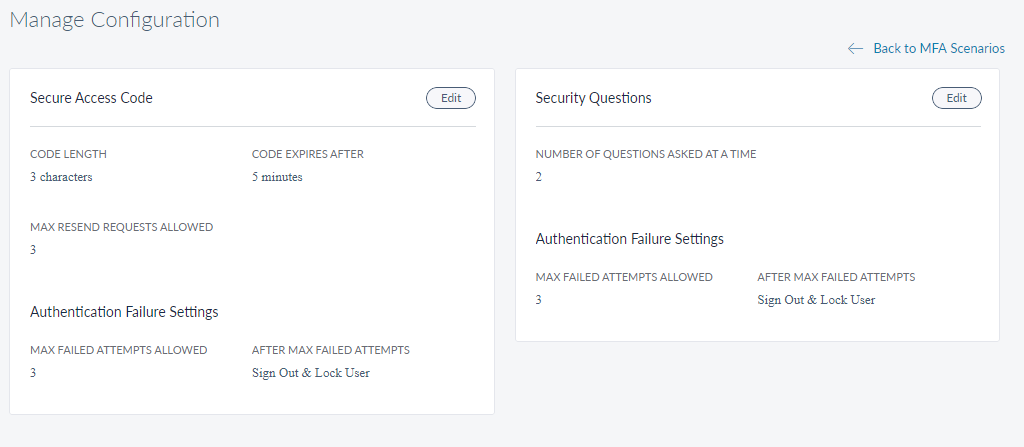
NOTE: The MFA options are deployed with default values. For example, if a bank wants Secure Access Code, the defined default values will be in place and the status will be active by default. Implementation team need not set these values as a part of the implementation effort. The main task will be to set up the secure access code delivery channels and associated actions in the back-end system. The configurations can be updated from Spotlight and do not require any back-end DB wiring work.
View the Authentication Factors
View the details of the authentication factors such as Secure Access Code and Security Questions.
Menu path: Security & Authentication > MFA Configurations
As a bank staff (administrator), you can do the following:
- Click the factor and view the details.
- Edit configurations.
Edit Secure Access Code
Use the feature to edit the secure access code configuration-related details.
Menu path: Security & Authentication > Multi Factor Authentication > Manage Configurations > Secure Access Code > Edit button
The app displays the Edit Multi-Factor Authentication Configuration screen. All fields are mandatory until otherwise stated. Do the following:
-
Code Length. DBP IDM will be generating the code to be sent to the customer. Define the length of the code in the numerical figure to be sent to the customer by clicking the "+" or "-" symbol. The acceptable values are 4, 5, 6, 7, and 8. The default Value is 3.
-
Code Expired After. This is the duration for which a code sent to the customer is valid. The value is defined in seconds. The maximum value for validity is 10 minutes - 600 seconds. The default Value is 480 seconds.
-
Max Resend Requests Allowed. In case of delivery failure, the customer can request the OTP to be resent. Choose how many times the customer can request for a resend from the customer facing app from the values (1, 2, and 3). The default value is 3.
-
Max Failed Attempts Allowed. The customer can be allowed to retry entering the OTP in case of an entry error. Decide if the user is allowed to retry (default value is Yes), and if yes, how many times. Choose from the values (1, 2, and 3). The default value is 3.
-
After Max Failed Attempts. After maximum unsuccessful retries, choose if the customer should be logged out or logged out and the account locked as well.
Click Update. The app displays a confirmation message that the details are saved.
NOTE: Cancel the activity at any time. The changes are not saved.

Edit Security Questions
Use the feature to edit the configuration-related details of the security questions.
Menu path: Security & Authentication > Multi Factor Authentication > Manage Configurations > Security Questions > Edit button
The app displays the Edit Multi-Factor Authentication Configuration screen. All fields are mandatory until otherwise stated. Do the following:
-
The number of questions asked at a time. The acceptable values are 1 and 2. The default value is 2.
-
Max Failed Attempts Allowed. The customer can be allowed to retry entering the answer to the security questions in case of an entry error. Decide if the user is allowed to retry (default value is Yes), and if yes, how many times. Choose from the values (1, 2, and 3). The default value is 3.
-
After Max Failed Attempts. After maximum unsuccessful retries, choose if the customer should be logged out or logged out and the account locked as well.
Click Update. The app displays a confirmation message that the details are saved.
NOTE:
- Cancel the activity at any time. The changes are not saved.
- In case no security questions have been set up in Spotlight, the bank staff is prompted with the warning, "There are no active security questions in the system. Your preferences will be saved, but remain inactive until the questions have been added and activated.". The bank staff is given the option to visit the security questions module "Set up Security Questions Now" or "Cancel". Irrespective of the action taken by the bank staff, the preferences for security questions will be saved and the status will be set to "Inactive".

Add Bookmark
save your best linksView Bookmarks
Visit your best links BACK
BACK


Are you sure you want to log-off?